
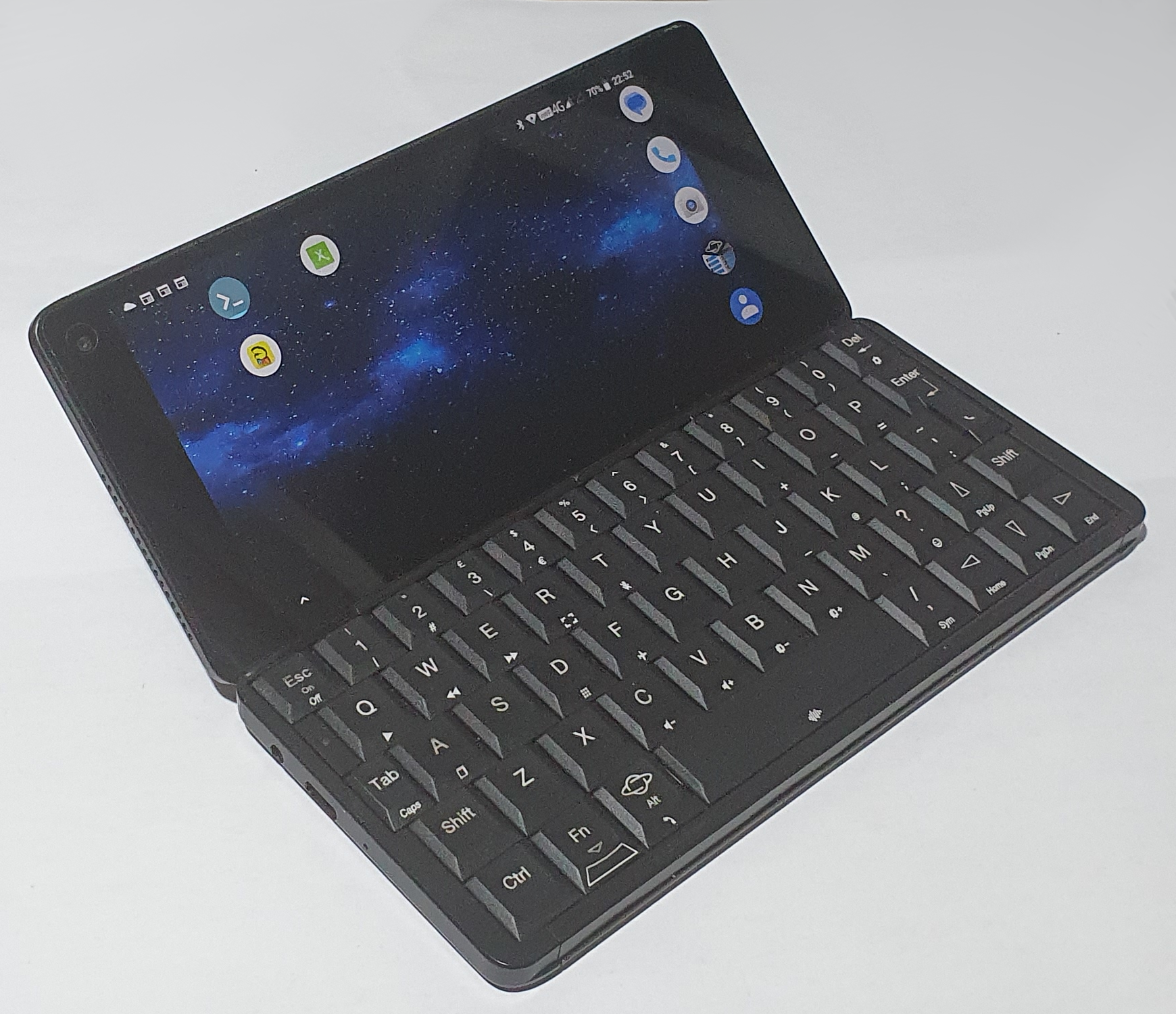
Planet Computers Gemini
In the 1990s, there was a form factor of hand-held computers which were similar in design to modern laptops, just smaller. Often these computers had calculator-style keyboards which weren’t great, especially for touch typing. Towards the latter half of the decade, though, Psion released the Series 5 with a small laptop-style keyboard you could touch type on (HP also released the Jornada 680).
Then in 2007 everything changed when Apple shook up the market with their all-in-one smartphone, the iPhone. Touch screens soon replaced physical keyboards and the form factor all but died out.
In 2017, Planet Computers started an Indigogo crowd fund campaign for the Gemini. It reached over $2,500,000. Clearly there was a market for a modern Psion Series 5-like device!
Their chief designer (according to their website) was (and maybe still is) Martin Riddiford, who worked for Psion through his design company Therefore. He designed the Psion‘s including the Series 5. CHM has a slide-like interview with him, and there’s one (more specifically about the Gemini) on YouTube.
The WiFi only version of the Gemini is still for sale on Planet Computers‘ website at time of writing (November 2025), while stocks last. But this appears to be an untruth. There is a Reddit thread where people have seen nothing happening on the site for years now and people are having trouble paying for anything in the store (including me). They aren’t responding to my (or anyone else’s) emails either.
Hardware
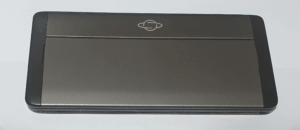
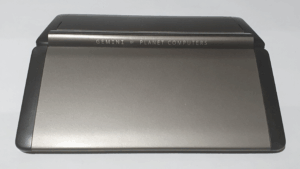
When you first see a Gemini, you’ll probably see it closed. The top and bottom are both made of Space Grey metal. In order for the radio signals to escape, for Cellular connection, WiFi or bluetooth, the ends are made from black plastic.
The top has the planet logo on it and the back has GEMINI by PLANET COMPUTERS written on it.
It looks very sleek.
Also, on the outside, you might be entertained by a multi-coloured light show presented on the five notification LEDs. This is a feature that is currently unnecessary on most smartphones since they tend to have a screen always visible. Even folding phones tend to have a second screen on the outside.
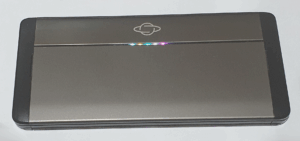
The gap between metal plates on the top also houses the microphones and speakers for phone calls. You can use the phone in either orientation as both ends house a mic and speaker.
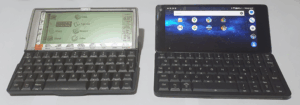
When the clamshell is opened you’ll be presented with the phone’s most striking feature, its keyboard. As mentioned before, it’s based on the keyboard on Psion‘s Series 5 and it’s almost identical and feels pretty similar, too.
Unlike the keyboard on the Series 5, it doesn’t slide forward when you open it. Part of the case does move to form a tilt stand, with a slightly rubberised edge, to improve the typing experience. It’s not as solid as the Series 5 and has a bit of flex to it as you type, but it’s definitely in touch-type territory.
In order to avoid breaking the smooth metal shell, all the expansion ports on the Gemini are within the plastic on the left and right sides. These are the 3.5mm headphone jack on the left, and two USB type C ports, one on each end. The jack supports media controls and a microphone, but the USB-C ports are not made equal. Only one can be used for charging the battery and only the other can be used for the HDMI adapter (more on those later). There is also a silver shortcut button on the right hand end and stereo speakers on both – the sound quality isn’t up to modern standards though.
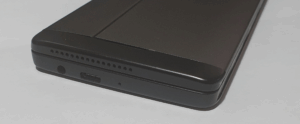
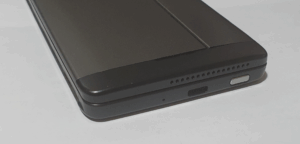
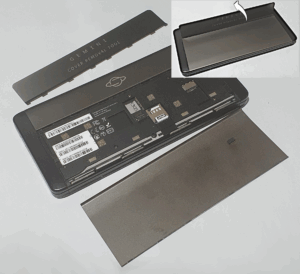
The Gemini supports expanding its disk by microSD card, not always a given these days. The version I have also supports cellular connectivity using a SIM card or an eSIM. The SIM and microSD slots are hidden under the top metal panel as is an optional front facing camera (see below).
In order to remove the panel you need to insert the opening tool and lever it off. Be careful not to lose the tool though!
Extras
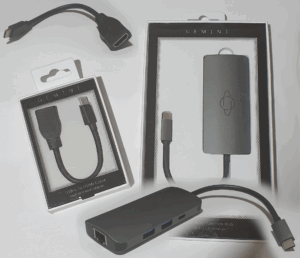
The website does offer a few accessories (while stocks last), most of which came with my Gemini (except from the camera).
Outer camera
This seems to be a replacement top cover with a hole in it for the 5 MP camera. The camera itself is on a small card that plugs into a small socket on the inside. The quality of the camera isn’t all that great apparently.
USB-C Dock
This is a fairly common device for modern laptops, but not seen on smartphones much. Since it’s a USB-C device, I expect any such dock will work.
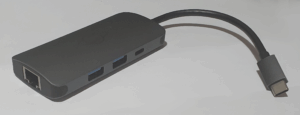
On it you get a passthrough USB-C port (although this can’t power or charge the device), two standard type-A USB ports and an ethernet port (with status lights).
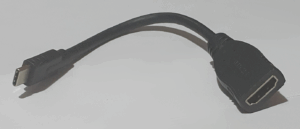
USB-C HDMI adapter
This is also a fairly standard device and allows you to mirror the internal screen on an external one.
Leather pouch
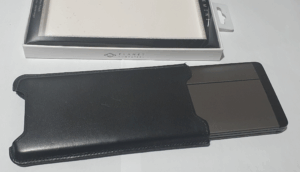
This is a first party sleeve made from black Tuscan leather. It features two open ends to grant access to the expansion connectors, one of which has lips to prevent the Gemini sliding right through.
Summary
- Chipset: MediaTek Helio X27
- Laptop-style QWERTY keyboard, with external smart button (no backlight)
- Battery: 4220 mAh Lithium Ion
- Display: 2160×1080 pixel, full colour, 5.99″, multi-touch LCD
- Internal (selfie/video conference) camera: 5 MP
- Microphones and handheld speakers at both ends
- Stereo speakers
- 5 external status RGB LEDs
- 2x USB-C ports: charger only works in one, HDMI adapter only works in the other
- 3.5 mm headphone/microphone jack with support for media controls through TRRS
- SIM and eSIM (2G/3G/4G, there is a WiFi-only version too)
- VoLTE and VoWiFi
- WiFi: 802.11 ac/abgn
- Bluetooth: V4.1
- MicroSD slot
- Sensors: Accelerometer, compass, light sensor, gyroscope, magneto-sensor
Software
On Indigogo, the Gemini was advertised as being a dual boot device, between Android and Linux. From the outset it was, although Linux support wasn’t great at the start. Android support started out on version 7, and 8.1 was finally released in May 2019, although newer versions have not been released. As of November 2025 we’re on Android version 16, and the Planet Computers‘ website claims to still be selling the WiFi only version of the Gemini (while stocks last), so support is a bit lacking.
Installing dual-boot Linux requires reflashing and repartitioning the device. The process is well documented on their website and quite easy to perform on Windows 10. There is also a Linux version of the flashing tool but I’ve not given that a try.
There are three different operating systems that can be booted into:
- Press Esc (on/off) for a normal boot
- Press and hold Esc (on/off) to boot into rescue mode
- Hold the outside silver button while you boot to get the alternative OS
- Hold the outside silver button and hold Esc (on/off) to get the second alternative OS
I’ve mainly been playing with Android, although I did try Kali Linux. Android was well supported but I believe Debian and Sailfish are pretty good. My experience with Kali was that it was not very good on such a small screen and cellular support wasn’t something I tried. I believe cellular support on Debian includes making and receiving calls, but don’t hold me to that.
Android
When is comes to Android, there is a page on Planet‘s website which guides you through setting up the Gemini. I didn’t do that but still had no trouble.
On the keyboard are a few extra ‘Fn’ keys that make Android easier to use by keyboard. These are:
| Fn-A | Show a list of running apps |
| Fn-D | Go to the desktop |
| Fn-F | Enter air-plane mode |
| Fn-Q | Play |
| Fn-W | Previous |
| Fn-E | Next |
| Fn-R | Take a screen shot |
| Fn-T | Mute the mic |
| Fn-. | Bring up a list of emojis |
| Fn-, | Bring up a symbol keyboard |
| Fn-Alt | Start a call |
| Fn-Del | Bring up the system settings |
| Fn-C | Volume – |
| Fn-V | Volume + |
| Fn-B | Brightness – |
| Fn-N | Brightness + |
Also on the keyboard you will find a key with the Planet Computers logo on it with the word ‘Alt’ written underneath. This replaces the Series 5‘s ‘Menu’ key. It can be pressed on its own to get the App Bar.
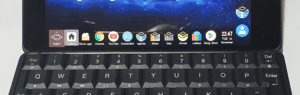
By default the bar auto hides itself after a few seconds, but this can be disabled in the ‘App Bar’ app. In that app you can also set up which programs should appear on it. You always get a ‘Planet’ menu and ‘Desktop’ icon at the left, and the date and time at the other end, but every other app can be configured. I find it useful for opening apps quickly using the keyboard – you can use left , right and enter.
Pressing Alt-Tab will do just what it does on Windows – switch app. The only other feature of the Alt key I can tell is to give accented characters, for example Alt-E followed by o gives an o with a dot above it, Alt-I followed by o gives an o with a hat over it.
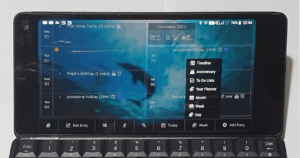
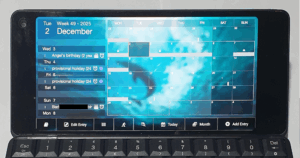
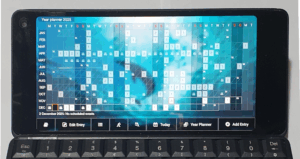
The app called ‘Agenda‘ is extremely reminiscent of the Agenda program on the Series 5. It has all the same main features but the menu and tool bar are very different.
Note that I had trouble making it work until I started Google Calendar. Suddenly it sprung to life – I suspect it was a dependency that Calendar started.
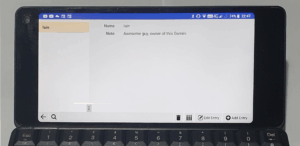
The ‘Data‘ app likewise behaves like the application of the same name on Psions device in that it’s more of a card file than a database. You can define a number of Databases, each has its own list of field names. A database the contains pages or data under those field names.
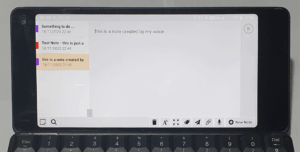
‘Notes‘ on the Gemini is similar in functionality to ‘Jotter’. You have a set of named notes. A note can be entered by typing or speaking it, it can have an attachment and it can have one of a pre-defined list of categories.
There is also an app called ‘Airmail‘. This is supposed to be an email client that is better to use with a keyboard. It offers to connect to IMAP, Exchange (WebDAV) and POP3. I connected to my gmail account via IMAP using an Application Password (it was a hassle to do).
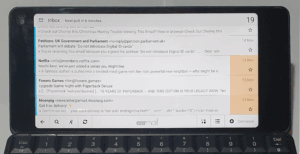
The ‘eSIM Wallet‘ app does just what you’d expect. There’s only the ability to have one eSIM in use at a time, but the wallet will let you switch between many of them. Be careful running this if you are using a physical SIM card as it’ll mess up your settings and you’ll have to change them back.
‘LEDision‘ is the tool that lets you configure how the outside notification lights act on certain notifications. The initial screen shows, and allows editing of, animated patters of the lights. There are some defaults. These patterns can then be assigned to individual callers or apps.
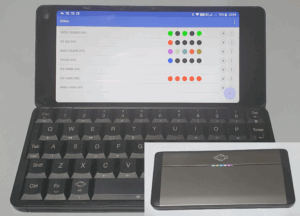
These apps are supposed to be on Google Play store, but they aren’t there for Android 8.1. They are pre-installed, though. I don’t want to install Android 7 to see if they’re on the Play store for it.
Summary
- OSes available (multi-boot):
- Android: 7, 8.1 (and a rooted version)
- Linux: Debian, Sailfish, Kali
- Custom Android software:
- Agenda – based on the one by Psion
- Airmail (doesn’t work with my google account)
- AppBar – a tool bar triggered by the Alt key
- Notes – like Psion‘s Jotter
- Onesearch (according to the web site, but no sign of it)
- PlanetSyncAdapter (no idea what this does)
- Data – works like the Psion application of the same name
- eSIM Wallet
- Gemini Keyboard – configure the Gemini keyboard
- Gemini Voice Assistant – configure voice assistant
- LEDision – set up patterns for the notification LEDs
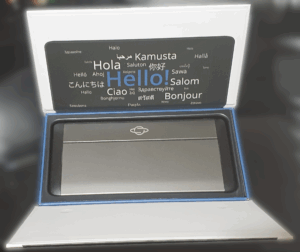
The Box
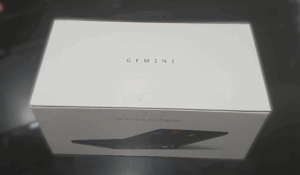
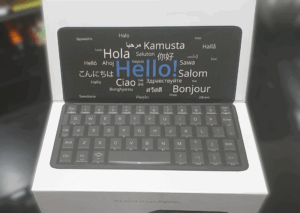
The Gemini I got came in a box, along with boxed extras. All in good condition. The Gemini box is worth commenting on, as it’s quite neat.
Repairs etc.
I bought this Gemini from eBay (where else) as a faulty device. The seller had taken photographs of the device working, and then decided to reflash it to factory default. For some reason it fauled and the Gemini was left in a boot-loop. It was then impossible for them to make it work.
I went to the Planet Computers website and reflashed the device. Following the instructions it said to just ‘Download’ some of the partitions, which didn’t work, so I did a ‘reflash’ of all partitions and that worked. I’ve since tried a couple of Android and Android+Linux reflashes and had no problems.
My Gemini has a bit of a wonky space bar and the M key is a bit flaky, but I did get it second hand. A bit of isopropyl alcohol fixed the M, but make the space bar worse. I added a touch of silicon lubricant (just a touch) and it doesn’t stick as much any more. It doesn’t stay stuck to the rubber sheet though, the isoprolyl alcohol saw to that, so I’d be careful using that on it.
Summary
My limited using of Linux on the Gemini gave me the impression that it wasn’t a good OS choice for a small screen device so I quickly went for Android. I could have tried it with a different user interface, as I know that there are many, there might even be one that has the required chunky finger compatible icons. Perhaps I’ll look into that.
As for Android… It works well with Android 8.1. I did briefly try Android 7 but not for long enough to review it as 8.1 works for me and it’s newer (although not by much and 8.1 is still 8 revisions behind as of November 2025).
So, Android 8.1…
I spent a while making it look less like traditional Android and more like how I set up my Linux boxes. I installed ConnectBot as an ssh client; I spend ages setting up Agenda, and AirMail (they both took some hassle); I removed the back/home/apps buttons as they are available on the keyboard; I set up the App Bar to have the apps I like; Set up some notification LED patterns. That was about it.
That’s what I like about Android and Linux – you can do this! If I was so inclined I could have changed more but I didn’t feel the need. To get this far took some time but it’s a decent little mini-laptop now. One that can take and make calls and works on WiFi or cellular data.
The keyboard is pretty good, and yes you can just about touch type on it. It’s better than almost every keyboard of a similar size (and some larger ones).
I like the fact that you can connect USB-C devices to it (especially the docking station). What I don’t like is the fact that I can’t use my laptop charger on it (I suspect it handles USB Power Delivery differently that on more modern devices). I haven’t tried its charger on my laptop, but I don’t expect it to work.
To-Do
- Try more Linux flavours and user interfaces.