
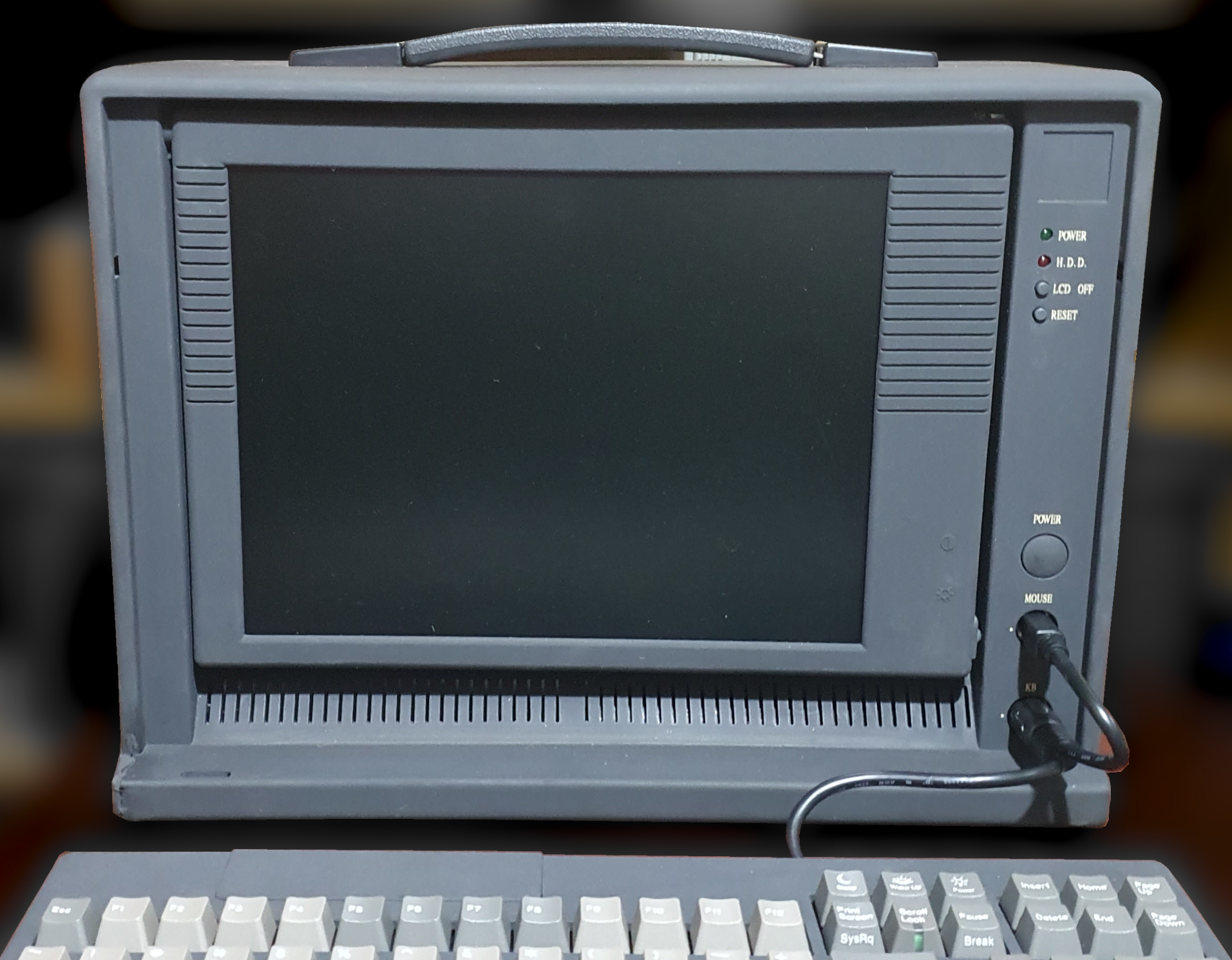
Lunchbox PC
The Lunchbox was one of the earliest form factors for the mobile PC, favoured before the more common clamshell format and without batteries. One of the first was probably Compaq’s Portable III (Wikipedia page). These machines were unlikely to be as expandable as a desktop (or tower) PC. Most of the functionality which would have been on expansion cards would have been built onto a custom motherboard, much like a modern laptop.
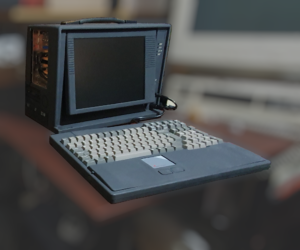
A more modern Lunchbox tends to be a standard mini-tower PC with a screen bolted onto the side of the case and a keyboard which can be clipped onto it to protect the screen when in transit. This is the type I have. It is unbranded, but scouring the internet I found a very similar machine by Acme Portable, the Acme II-803 (Archive.org copy). It’s not that popular a form factor these days, but they have their uses for specialist applications (see Acme Portable‘s current offerings).
Hardware
Since this is essentially a mini-tower PC, it can take a normal PC motherboard or backplane and ordinary PCI or ISA cards.
On the left side, the case contains 8 slots for ISA, PCI or similar depending on the motherboard or backplane inserted.
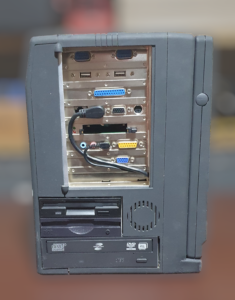
The machine I have came with a separate backplane and SBC card (single board computer) rather than a single PC motherboard. In order to drive the integrated LCD screen, it has a dedicated graphics card. It also has a sound card which drives the internal speakers.
The PS/2 mouse connector and the sound output are taken from connectors on the external slot brackets rather than through internal connectors, like the LCD panel and the keyboard.
The right side of the case contains the power supply – the socket for it and fan inlet. Also on that side are controls for the volume of the internal speakers.
The back of the case is mostly bare, except for a set of screws and a cover. The cover clips over a set of unused ports for serial and parallel connectors. Since the back needs to be removed to install connectors here, long cables would be required.
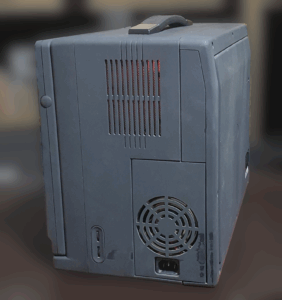
When closed up, the keyboard clips onto the case, covering the screen. This makes it the shape of a (rather large and heavy) lunchbox with a carrying handle on the top. Removing the screws on the back would allow your sandwiches to be kelp inside, but I wouldn’t recommend it.
Two push tabs release the keyboard and the cable to connect it to the main body of the computer is squirrelled away inside a compartment on the keyboard.
There are two connectors, one for mouse and one for keyboard. This allows a real PS/2 mouse to be used instead of the trackpad.
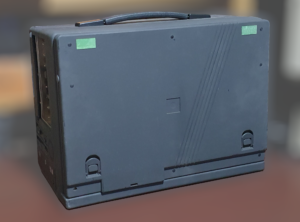
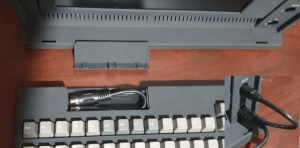
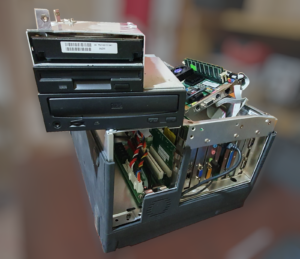
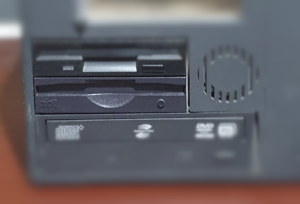
The Acme II drives are all held together in a drive cage. That provides two 3.5″ bays (for HDD and floppy) and one 5.25″ bay (for the optical drive).
I changed the CD ROM for a CD/DVD ROM, upgraded the spinning hard disk for a compact flash drive and added a Zip drive (see Hardware Upgrades below).
Deep in the bowels of the machine, hidden behind the power supply (which I didn’t manage to extract) can be found an audio amplifier for the internal speakers.
As far as I can tell, it mixes sound from the optical drive and the sound card together as well.
There are a couple of knobs on the right side of the case to alter the volume. At higher volumes, the speakers pick up noise when the drives are active. I’m not sure why exactly but I haven’t managed to get to the amplifier board yet.
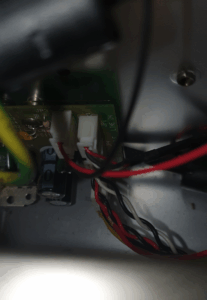
Also, when I got it, the lunchbox contained a 4-port USB card (which I replaced with the two USB ports on the CPU SBC card).
The Boser HS6237 SBC
The backplane on my Acme II lunchbox PC has two ISA slots, four PCI slots and two PISA slots. I have yet to determine what model it is or who manufactures it.
Unlike most PCs, the backplane contains no CPU of it’s own but requires a SBC (single board computer) to be installed in one of its two PISA slots. These slots transmit both ISA and PCI signals on a double-stacked edge connector in order for the backplane to pass them on to its PCI and ISA slots. Since I have only one SBC card I am unsure if two cards can be used at the same time, but there are two PISA slots so I expect it’s possible but I am unsure of how that would work.
The SBC card has a socket 370 ZIF socket for an Intel Celeron or Coppermine CPU running at 500-850MHz. It can take 2 DIMM memory modules for a total of 512M. Mine has the Celeron CPU and the whole 512M RAM.
The card has onboard graphics capable of up to 1280×1024 pixels with 256 colours over an external VGA socket or an internal LCD connector. My Acme II machine does not use the internal graphics though, but relies on a PCI card with an internal LCD connection.
For storage, the board has ports for floppy disks, IDE disks and can take a disc-on-chip.
As well as the PISA card edge, the Boser HS63237 SBC also contains PC/104 connectors which allow industrial controllers and the like to be connected. The PC/104 standard is basically ISA and PCI in a different form factor.
Standard I/O ports are: two serial ports, two USB ports, a parallel printer port, PS/2 keyboard and mouse ports, SVGA graphics, 10/100 Mbit ethernet.
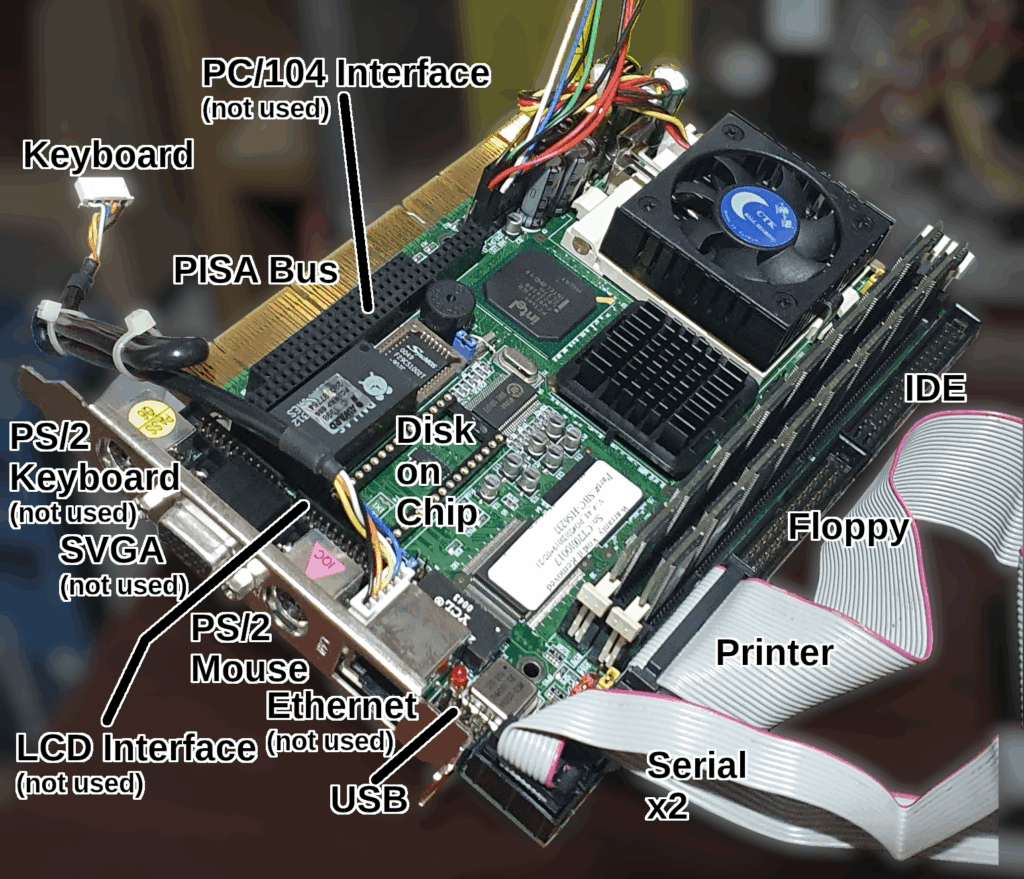
There is an internal connector for the keyboard making the PS/2 port on the back unnecessary. The mouse only has the external PS/2 mini-din, with a right-angled connector pulling the connection back inside and to the port being used by the provided keyboard/touchpad. Unfortunately the connector covers the ethernet port and so built-in networking cannot be used.
Software
Architecturally, my Acme II is a PC with 512M of RAM running an Intel Celeron processor and a normal PC chipset, graphics and sound.
As it arrived, it had Windows 2000 installed on the spinning hard disk. My Acme II lunchbox as it stands is probably capable of running Windows 95/98 or XP but I would think anything newer might struggle.
Windows 2000 drivers for the hardware supplied with it seem to be all present and correct.
Repairs
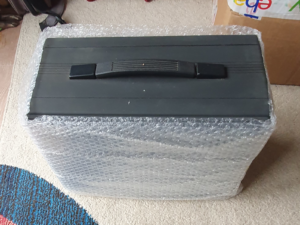
I got the Acme II lunchbox PC all the way from the USA and, as can often be the case with heavy devices and shipping companies, there was a tiny bit of damage… I can’t attribute any of it to the seller as it was well packaged.
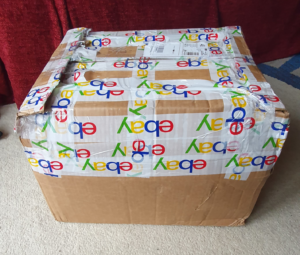
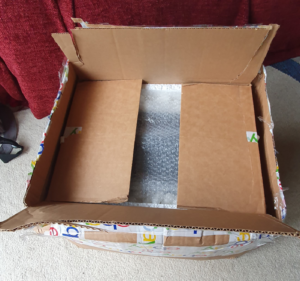
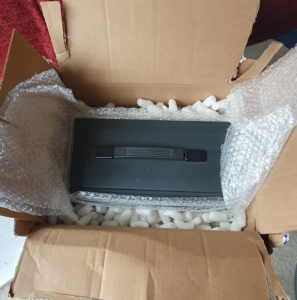
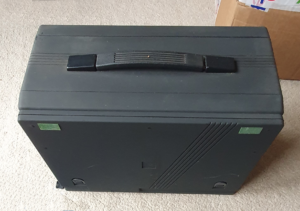
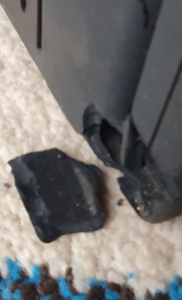
The first damage I noticed was the bashed corner.
In order to fix this, I glued the big chunk back and then used some black Sugru (mouldable glue) to fill in the gaps. When you first open the packet, the stuff behaves a lot like blu-tack or putty. When it sets it’s a bit rubbery but fairly solid.
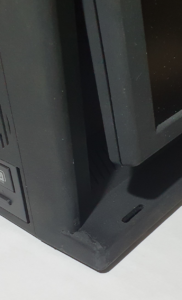
The next thing that I noticed was the screen surround had come unclipped.
This wasn’t a big problem and no damage seemed to have been done. I simply clipped it back together.
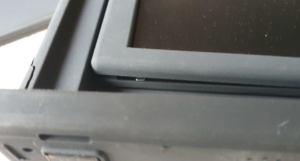
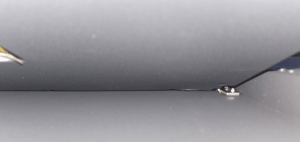
The screen hinge at the top right seems to have suffered minor damage too. I took a picture between the screen housing and the main body – you can just see on the right some minor damage. Unfortunately I can’t figure out how to gain access. Fortunately the problem is fairly minor and I can live with it.
The Acme II lunchbox PC is designed to be rugged, so I wasn’t expecting much damage. Even so, courier companies have a reputation for breaking vintage electronics so I was relieved when it turned out to be fairly easily fixable.
Hardware Upgrades
Since the Acme II is just a PC with PCI and ISA cards and all the usual ports, I thought I’d upgrade it a bit…
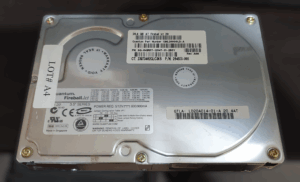
It came with a 20.4G Quantum Fireball IDE spinning hard disk. This I replaced with a 32G compact flash and adapter.
I also upgraded the CD ROM to a CD RW/DVD ROM drive.
Additionally I installed a Zip 250 IDE drive. This turned out to be a problem. There on only IDE bus on the SBC card and it’s needed for the hard disk (CF card adapter) and also for the optical drive.
To add the Zip drive I opted to install a PCI IDE card for it.
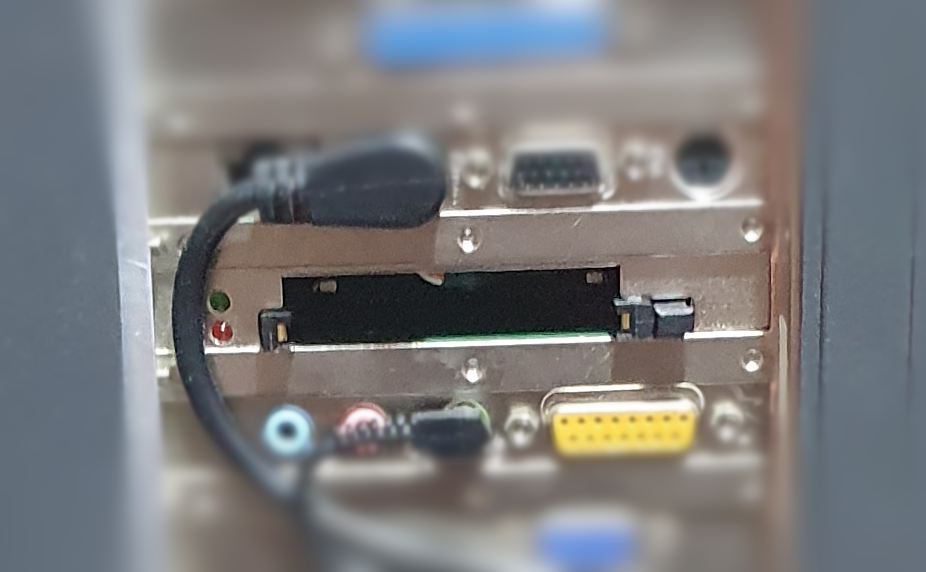
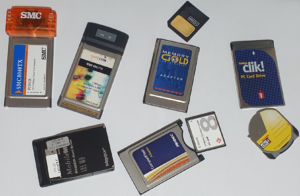
Back in the day, PCMCIA cards were a convenient way to expand laptops and some hand held machines. I thought it would be a good way to add networking and other things since I already have some cards.
I have installed drivers for a variety of cards (some were recognised as drives by the OS and didn’t need drivers):
- SmarMedia drive
- Clik! drive
- PCMCIA hard drive
- CF adapter (as storage drive)
- SMC8040TX Ethernet card
- Safecom WiFi card
Software Upgrades
The supplied Windows 2000 is functional, but nowhere near as functional as Windows XP. This version of Windows was one of the most popular ones (before Windows 10) – and for good reason.
Since XP is based on the same kernel as 2000 (i.e. the NT kernel), drivers for 2000 mostly work on XP. I expected the upgrade path to be quite straightforward. It was. I even ran the Microsoft convert tool to upgrade the filesystem from FAT to NTFS, which works well.
Of course I took a disc backup before I started. I use Linux’s dd command to do this so I have a raw byte-by-byte copy. This came in useful.
Windows XP has a compatibility feature in order to allow it to run software designed for an earlier OS. My testing found many games that would not run (correctly, or in some cases at all) in Windows 95 or 98 compatibility mode.
So I decided to install Windows XP and Windows 98 on dual-boot. I had trouble getting them to work together using separate partitions and eventually got them to work on one single FAT32 partition using the Windows NT boot loader that comes with XP. Some of the drivers I found didn’t work correctly under Windows 98, but XP drivers all work.
Summary
This Acme II machine is a pretty good Windows XP and Windows 98 gaming PC now. I can play the CD games that I had for Windows 95/98 on the real Windows 98 – they didn’t work in XP’s compatibility mode.
The graphics card is more than capable of driving the built-in screen and the sound card can equally well drive the speakers. It’s unfortunate that there is noticeable noise on the speakers when the CF hard drive is operating.
I have added quite an array of hardware to this machine, from Zip to PCMCIA. I use a PCMCIA network card and I have USB and parallel port Zip drives which I can use on many of my other machines. I can thus transfer data between machines easily.
What will I do with this machine now? I expect I’ll play games on it. I have yet to try Doom but I know it’ll play it 😉
To-Do
- Try Doom 😉
- Try lots of other games