
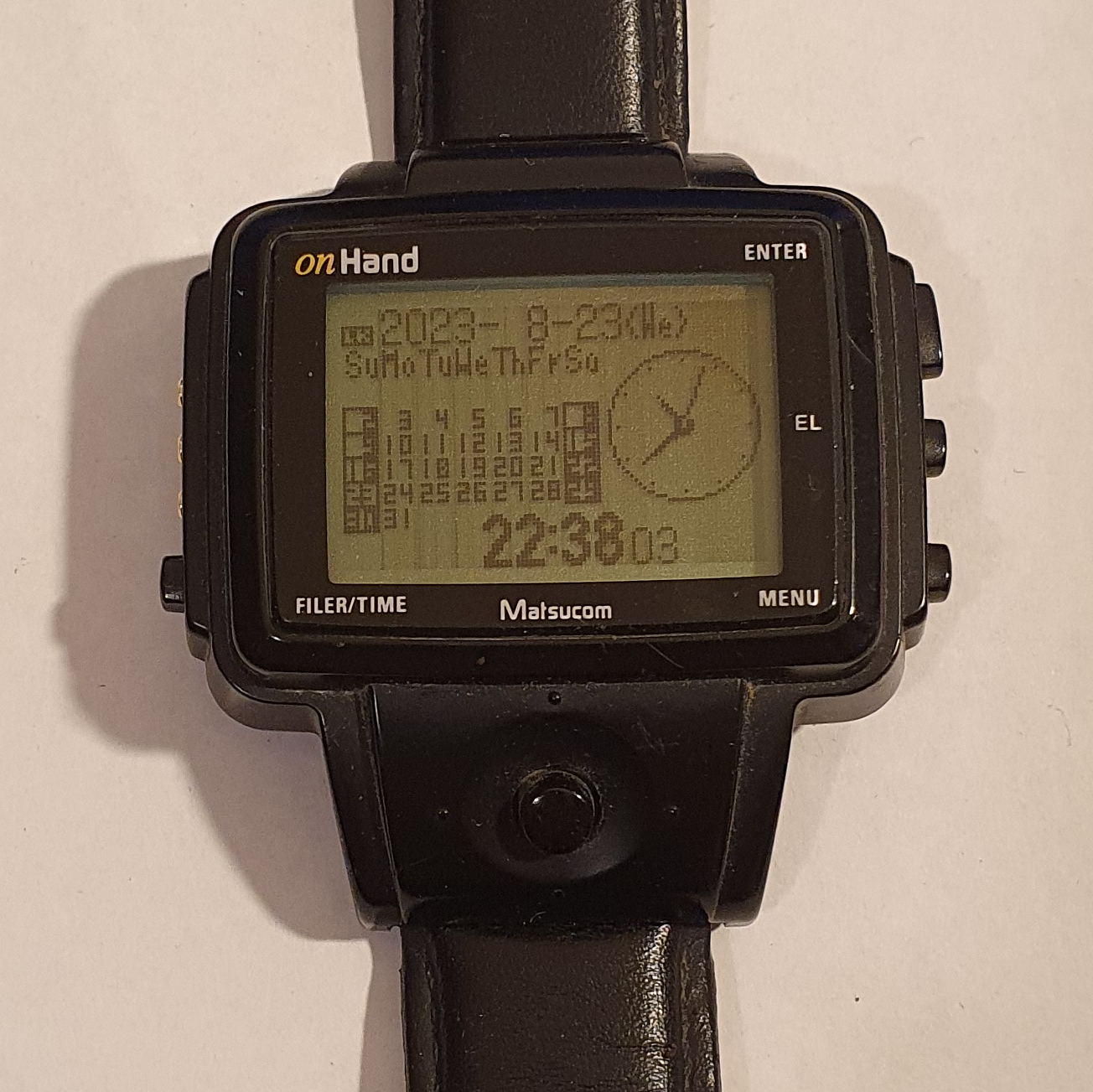
Matsucom onHand
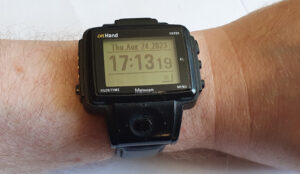
One of the more unusual devices in my collection is the onHand – one of the first watches considered to be a Smartwatch. It was released in the USA by the Japanese company Matsucom, released in 1998 and I imported it in 2003.
Hardware
The onHand was distributed in the US by Matsucom as the successor to the Ruputer, developed by Seiko.
The Ruputer was only distributed in Korea. It came in three flavours: 512KB storage, 2MB and 4MB. The onHand only came in 2MB, but two colours – black and transparent.
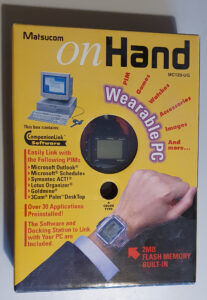
The screen on the onHand is a physically reasonable 1.75″ LCD, supposedly with 4 shades of grey, but I can see no sign of that. It has an elecroluminescent backlight, which it tries to keep on only to a minimum (as that really drains the batteries).
The resolution is only 102×64 pixels, which isn’t great. You can easily see the individual pixels (even with by ageing eyes).
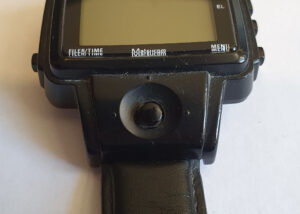
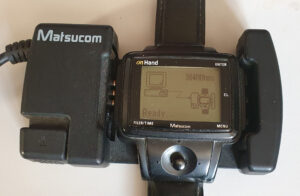
Input on the device is through 4 buttons and a 4-way joystick. The buttons are allocated as Filer/Time, Enter, EL and Menu. As you’d expect Enter confirms actions and Menu brings up a menu. EL always energises the electroluminescent backlight and Filter/Time switches between various modes (more under Software below).
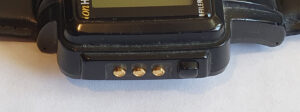
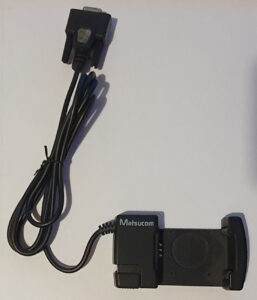
On the left side, you find a set of three metal pads where the docking cradle attaches. This provides a standard RS-232 9-pin connector but there is no external power input from it.
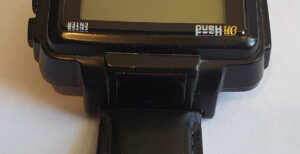
The top of the onHand is where you will find an infrared window. The device has the ability to communicate over xmodem or IrDA.
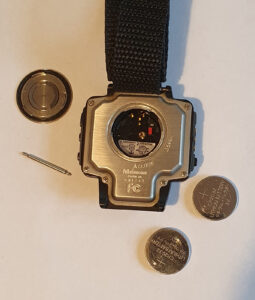
The onHand is powered by two CR2025 batteries inserted through a twist-off cap on the back. The manual claims that you can get up to three months out of a set as long as you have the screen set to timeout when it’s not being used (i.e. not having an always-on clock).
The internet tells me that you can fit CR2032 batteries in the onHand and increase the available run time.
Included with the onHand is a docking cradle. The watch sits inside it and it connects to the contacts on the left hand side. This provides RS-232 serial communications.
Software is included on CD to allow external input of data and synchronisation with Outlook, Palm desktop and others.
Summary
- CPU: unknown 16-bit.
- RAM: 128KB.
- ROM: 512KB.
- 2 MB Flash disk.
- Display: 102×64 LCD, 4-greys, electroluminescent backlight.
- Power: 2xCR2025.
- IrDA.
- 4 push buttons (Enter, Menu, Filer/Time and EL) plus joystick.
- Keyfob spare battery holder.
- Docking cradle (for RS-232).
Software
Browsing data and menus on the onHand with the joystick is a breeze. It lends itself well to those sort of tasks. Inputting data is not so simple.
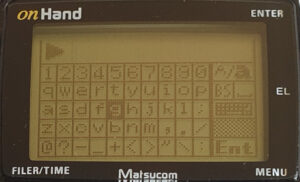
Entering data on the onHand is similar to entering text on a smart TV or games console. You are presented with a grid of characters and you use the joystick to choose which one you want. Some attempt was made to make it simpler in that a numeric keypad is displayed when numbers are expected and you can choose from a list of words which are relevant.
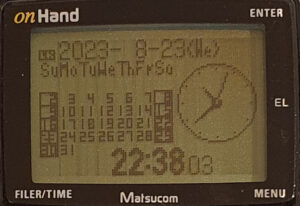
The fact that the onHand is primarily a watch is only a partial function of the device. The watch you choose is just one of many programs that you can run – and you can only run one at once.
Pressing and holding the Filer/Time key will always show the time, though.
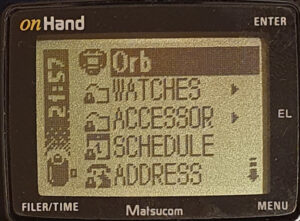
The ‘main’ page on the onHand is the WristTop – I assume it’s a play on Desktop. It is a page of recently used programs and directories, with the addition that you can stick items to the list as permanent shortcuts. At the top is an entry that gives you a view of the file system (you can name it what you like – I chose Orb).
Selecting the name of the onHand (Orb in my case) takes you to the Filer. This (along with the WristTop) is always available, even when when a program is running. You just need to press FILER/TIME to switch between them.
From the Filer you can select any program or file just like on a desktop machine.
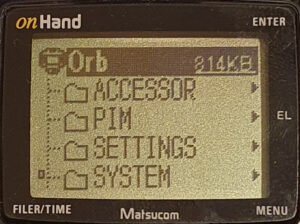
By default, programs are split into the directories PIM (Personal Information Management files – select a file to run the associated program), ACCESSOR (accessory programs – calculator, timer etc.), SETTINGS (Battery change and Secret store), WATCHES (time displaying programs) and SYSTEM. The SYSTEM folder contains (within subdirectories) the programs that run the files in PIM, config files, sound files etc.
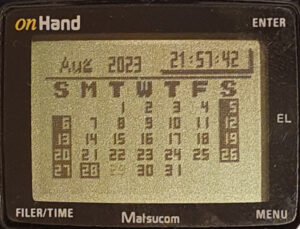
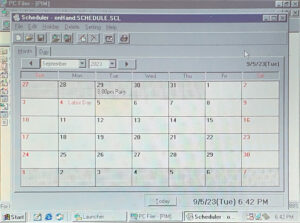
The Scheduler on the onHand starts up in calendar display. This shows a summary of the month with highlighted days where an appointment exists.
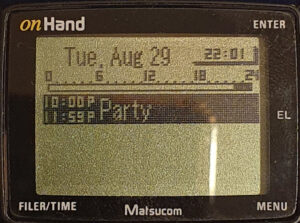
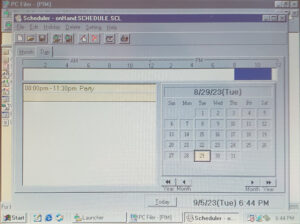
Selecting on a day shows a summary of that day. If there is nothing there, a message to that effect will be displayed. If there are appointments then they are shown along with a summary bar highlighting the busy times of the day.
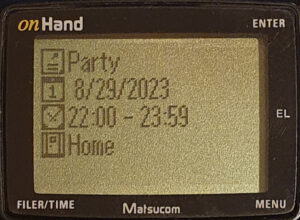
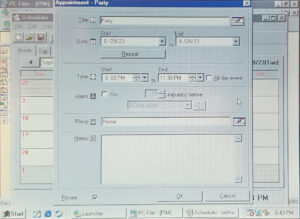
Selecting an appointment shows the details of that appointment. An appointment can span multiple whole days or a time period within a day. Unfortunately, it can’t cross midnight, and you can’t set an appointment as repeating (this can be achieved by syncing from a PC).
An appointment can have an alarm set to go off at an adjustable time before the appointment is due.
You can also set an appointment as Public or Private, although I think this is only relevant when synchronising calendars with a PC app (such as Outlook).
Another main PIM (Personal Information Management) program) is the Address Book.
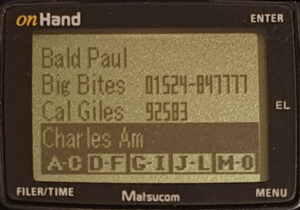
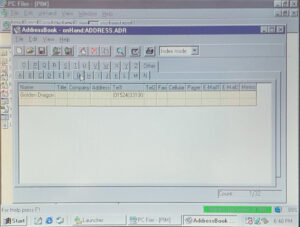
The first page shown is a list of names and telephone numbers. At the bottom is a shortcut bar which allows quick browsing through first letters of names.
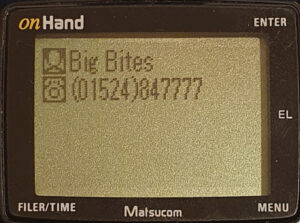
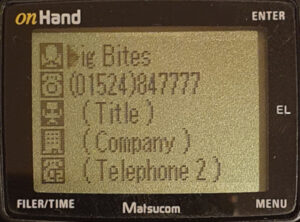
Choosing a name gives a summary of that address, which you can edit from the menu if you so desire.
The fields you can use include name, address, company name, several telephone numbers (including pager, fax and mobile numbers), email address (two of these) and job title. As far as I can tell, there is no way to add more fields. You can also select Public or Private – and, again, I think this is just for synchronised entries.
According to the manual, you can attach pictures to each entry. The pictures in the manual (not quite screenshots) make the images look pretty ropey, which I can understand on the low-res mono screen. I can’t see anyone being recognisable from one of those.
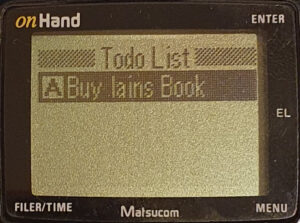
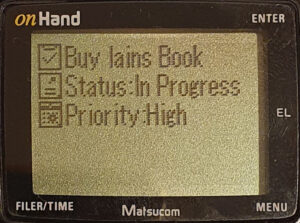
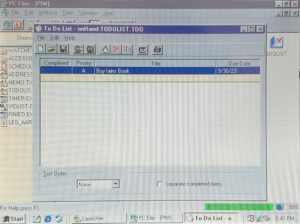
The Todo list program, like the Schedule and Address Book, is pretty straightforward.
On start up, you are presented with a list of entries. They can be of a priority (High in this case – shown in the list view as ‘A’) or crossed out if completed.
Selecting an entry shows its details. It can be edited from the application menu.
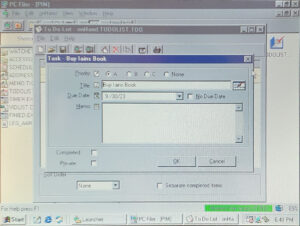
You can set a due date, priority and memo, if you like. You can also set the item to be Public or Private.
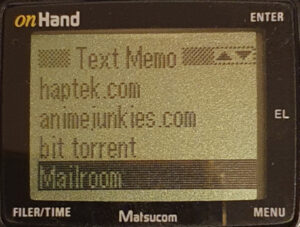
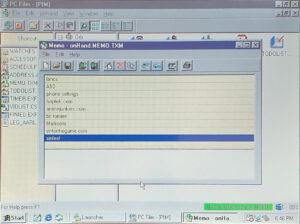
Quick notes can be entered in Memo. When I say ‘quick’ I mean ‘tedious’ with the joystick input method.
Notes can have a short title and a longer ‘memo’. Again you can allocate them to be Public or Private.
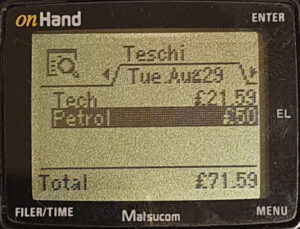
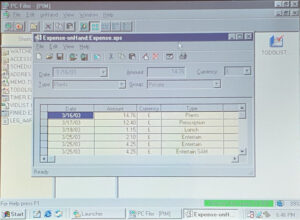
You can use you onHand to track your expenses (if you have the patience to enter them). You can view daily or monthly summaries in different currencies and assign expenses to various groups.
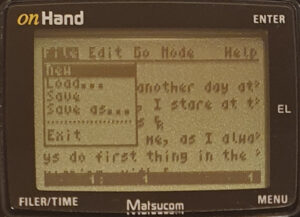
The TXT Viewer on my onHand I replaced with TECLADO before I packed it away. It has a more desktop-application style interface. When you click the MENU button you get a desktop-style menu bar. The display font is very small and not great resolution, but you get more on the screen. The built-in TXT Viewer is more in keeping with all the other default apps. According to the manual it handles TXT, CSV, SND (sounds) and STW (stopwatch LAP data).
The other default programs include a calculator, chronograph and timer. There are some built-in games too: Reverse (Othello), Puzzle (arrange tiles in order), Snowbd (a snowboard racing game) and RForce (dodge the missiles – a kind of horizontal shooter with no guns).
Summary
- OS: W-PS-DOS version 1.18.
- Scheduler.
- Address book.
- Expense.
- To-Do list.
- Memo.
- Calculator.
- Watches – watch faces including world times.
- Chrono – stopwatch.
- Timer – countdown times.
- File viewer / Sound player / CSV viewer / Lap times viewer.
Windows Software
The onHand would not be as much use if you couldn’t connect it to a big-boy computer. In the box is a cradle which connects to the pins on the left-hand side and providev a standard 9-pin RS-232 connection.
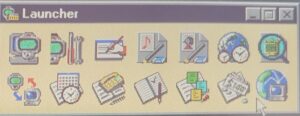
The Windows software runs on Windows 95, 98 or NT4.0. A Launcher gives instant access to all of its features.
The icons, in turn, are: PC Filer, Control Panel, Word List Editor, Sound Editor, Image converter, World Time Settings, Chronograph Viewer, Data Sync, Scheduler, Address Book, ToDo List, Memo, Expense and a shortcut to the web site.
The PC Filer lets you browse the file system of the onHand in a similar way to Windows Explorer with a directory tree and a list of the files and folders in the selected directory. Many special file types, when run, will open up one of the programs in the suite to handle that file type. E.g. SND opens the Sound Editor, SCH opens the Scheduler etc.
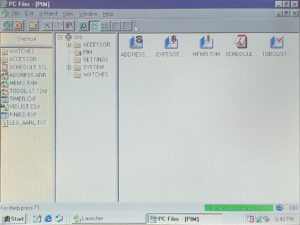
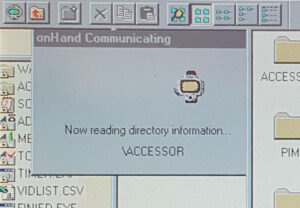
Since it’s communication is by RS-232 at (by default) 38400 baud, it takes a little while to list a directory (thirty seconds or so). You’ll be seeing this dialogue pop-up briefly… then again… and again… It’s on for a second then off for a second. Repeat about twenty times for the root directory and a number of times again when you select another one. Admittedly, 20-30 seconds isn’t terrible, especially for the time.
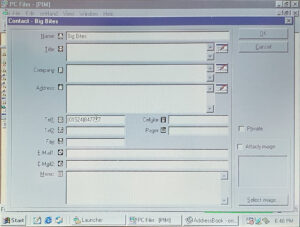
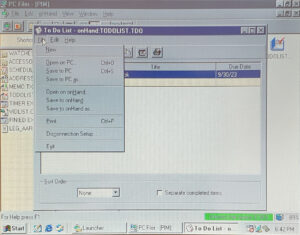
Many of the applications in the Widows package mimic the built-in applications on the onHand watch itself:
Scheduler
AddressBook
ToDo List
Memo
Expense
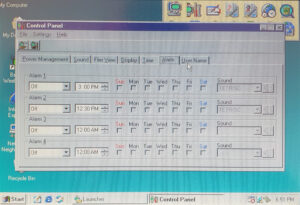
Control Panel
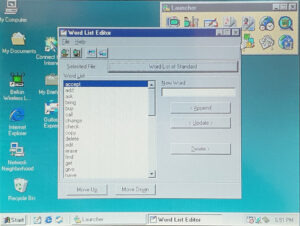
There are other programs that customise the onHand, such as the Word List Editor. This helps with the joystick input: one of the input methods provides a list of words to choose. This is an editor for those word lists. There are different word lists dependant on the context, e.g. Address Book (title) or Scheduler (place).
There is also a sound editor which creates the monotonic SND files which the onHand can play. You can use it to edit existing SND files or create new ones from scratch. You can select the note type (length) or pause type, then press the note you want to play on the keyboard.
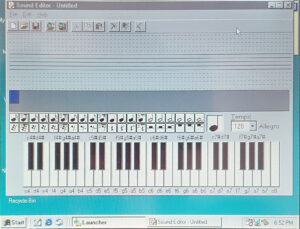
There are also applications that convert images to MMP (to view on the onHand), set up World Times and cities, view Chronograph lap times and any of the features in the Control Panel.
One last feature, arguably the least useful, is DataSync. This allows the onHand PIM data to be synchronised with your PC. As far as I can tell this just copies changed data to keep the two in sync (specifying which is considered the primary source).
CompanionLink (by CompanionLink Software) is also provided on the onHand CD. This is arguably the most useful program. It requires the ability to talk to the onHand, and thus requires the Windows PIM software (as mentioned above) to be installed.
CompanionLink synchronises the data files created by DataSync with Microsoft Outlook, Microsoft Schedule+, Lotus Organiser, Palm Desktop or a number of others. Only specific versions of each are listed, but a few versions of each.
Summary
I used the onHand for a good while when I bought it in 2003, but then packed it away and moved on to more modern wearables like the Fossil Abacus PalmOS watch, Sony’s Smartwatch 2, Smartwatch 3, Huawei’s Watch 2 and currently Samsung’s Galaxy Watch 6 Classic. The styling and size of the onHand doesn’t even compare to those newer wearables (and, of course, it doesn’t have the CPU power and memory that modern devices have) but even so its still surprisingly capable.
If things had panned out differently, maybe if I’d been on the design team for an onHand 2, the only features I’d add to it would be:
- Rechargeable battery: another pin on the side of the onHand and a matching one on the dock would do that.
- Higher resolution screen: a rechargeable battery would prevent this from being a power burden.
- More configurable watch faces: this is, after all, the primary use of a wrist watch computer.
- Make the thing a bit smaller.
Repairs etc.
I bought this in 2003, imported from the USA by ThinkGeek. When something new and shiny came along (the Fossil Abacus is shiny, yes) I packed it away for years and got it out again in 2023. I had to replace the original strap (before I packed it away) since it was made of rubber and fell apart.
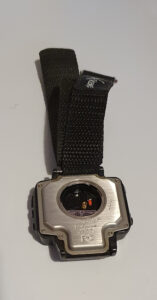
The strap that I’d put on it was horrible (I have no idea why I chose it), so I replaced it with one I had lying around – conveniently of the right size. That’s a much nicer black leather strap, which is featured in most of the pictured on this page.
The strap I’d used was fixed to your wrist with hook-and-loop (which we all know as Velco) rather than the usual buckle-and-holes. It attaches through both watch strap pins and across the back. This, of course, makes the batteries a pain to replace, having to remove one of the strap pins to gain access.
I’d sensibly removed the batteries when I put the watch into hibernation, but left a spare set in the key-fob battery holder. They were still in good working condition when I tried them! The watch is also in perfect working condition (apart from the strap). It’s just a little dusty, though.
To-Do
- Try Infra-red.
- Try some other software.
Quality content is the main to interest the users to pay a quick
visit the website, that’s what this site is providing.
my blog [bad URL removed – Iain] what is paste on the keyboard
Thankyou!
Sorry I removed the URL from your comment – I don’t think that was what you meant to post. Google couldn’t find a blog called “what is paste on the keyboard” so I’m not sure you meant that either. It would be a cool name for a blog though.
What’s up to every one, the contents present at this
site are actually awesome for people knowledge, well, keep
up the nice work fellows.
Thanks!
“Fellows” is just me, btw…
Coool blog! Is your thheme custom made or did you download it frfom somewhere?
A theme like yours with a few simple tweeks would really make my blog
shine. Please let mme know where you got youur design. Cheers
Hi.
It’s a standard template called Kadence. I don’t remember making any changes to it but I did install some plugins. None of them change the appearance though.
I have to thank you for the efforts you have put in writing this blog.
I am hoping to see the same high-grade blog posts from you in the futue as well.
In truth, your creative writing abilities has inspired
me to gget my own, personal blog now 😉
Thanks for the compliment. Inspiring others is always a great feeling. Good luck with your blog.