
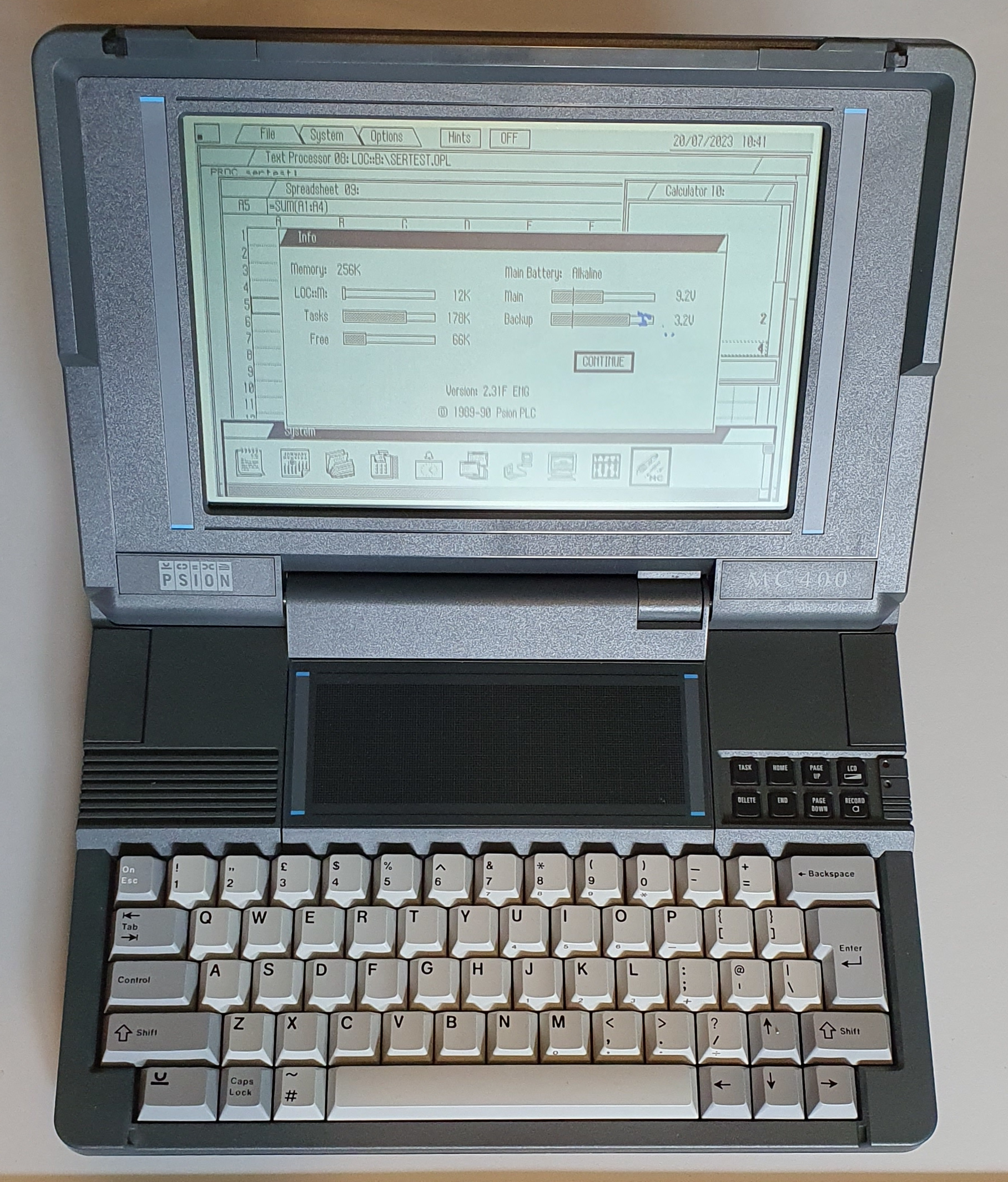
Psion MC400 Mobile Computer
I thought I’d heard of all of Psion’s home-user offerings, from the original Organiser through to the Series 7. My first purchase was the Series 3 – back in the early 1990’s when the device was current. I sold that in favour of the Series 5 when it came out. More recently I was scouring the vintage computers section of eBay and saw an auction for this MC400. I was wrong – here was a Psion I’d never heard of! They only appear on eBay very rarely and (like buses) three came along at the same time. Despite only having sold around 1000 of these, there are plenty of websites about them.
Hardware
Like most of Psion’s offerings, the MC400 is well built. It’s one of the first laptop-style computers to feature a trackpad and a 60-hour battery life, off a set of AA batteries no less! Admittedly you need eight of them.
The keyboard on the MC400 is very good, in my case a fairly standard qwerty layout even with an inverted T layout for the cursor keys. There are a number of smaller keys to the right that perform tasks like Page Up/Down Home/End and Delete. Amongst them there is also a dedicated Task button which performs task switching (much like the more modern Alt-Tab) and an LCD button (which adjusts the screen contrast). Also there is a Record button. This needs a dedicated compression module to do anything – apparently that would be dictation. I don’t think they were ever manufactured.
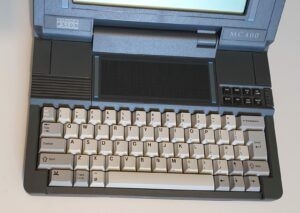
The trackpad is an unusual beast. Bear in mind that it was one of the first, so there wasn’t an established way to do it yet. Firstly, it’s above the keyboard, which is ergonomically not the best place for it and secondly it’s mapped absolutely rather that relatively. That is, you touch the top right and the pointer appears at the top right of the screen, you lift your finger off and touch the bottom left and the pointer appears at the bottom left of the screen. It takes some getting used to. Another oddity (compared with modern trackpads) is its lack of sensitivity – you have to press harder than you’d expect in order to make the pointer appear. Finally, to click you have to physically depress the trackpad itself (which makes a good tactile click). That’s something Apple seem to have brought back more recently (I’m sure they’d say otherwise, but Psion got there first!).
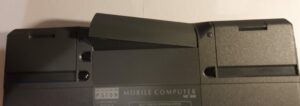
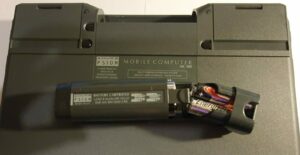
The batteries for the MC400 take the form of a clip-in pack. There were three kinds available, two rechargeable packs (Ni-Cd) and a carrier for eight standard AA alkaline’s. Fortunately that’s the one I have rather than either rechargeable type (both of these would have leaked horribly by now and AA’s are still easy to get hold of).
It’s claimed you get 60 hours out of a set of alkaline’s (less from Ni-Cd’s) but I’ve not tested this.
On the right hand side of the MC400 is a cover which protects two of the four SSD card slots. These are the same cards that were later used in the Series 3 line of pocket computers.
Also can be seen a sliding cover. Underneath it are a 3.5mm headphone jack, 3.5mm microphone jack and power barrel jack. The power jack is a standard 12V, centre negative affair (using 9V seems to work just fine).
Also, there you’ll find a power LED and built-in mic. The microphone jack might be standard 3.5mm one, but without the compressor module it does nothing (just like the built-in mic).
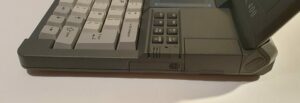
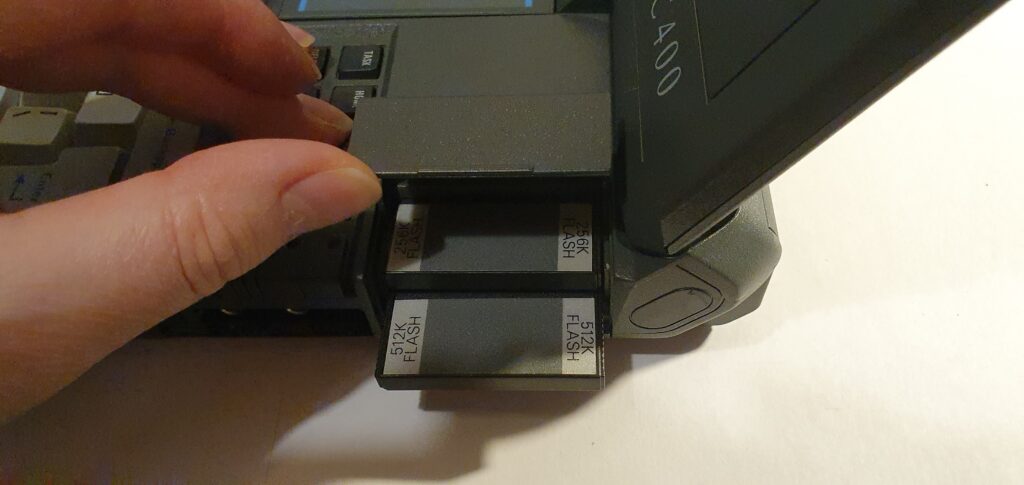
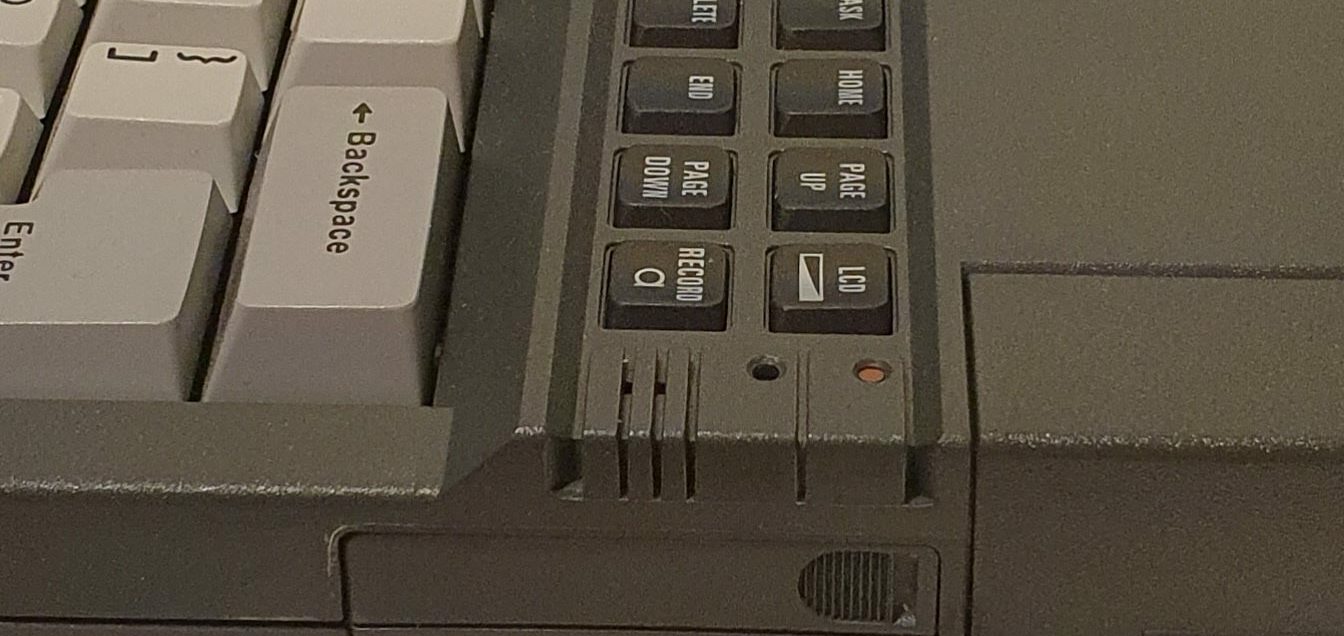
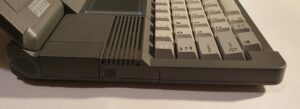
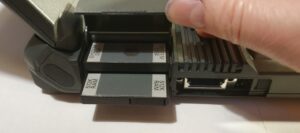
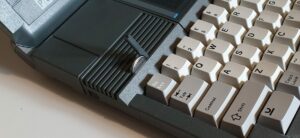
On the left hand side, there are another two SSD card slots under a similar flap. Just like the slots on the other side, lifting the cover pushes out the bottom one making it easier to remove. The top one, in my case, is the System card. The contains the application software (more about that below).
Also on the left of the machine, hidden away under a sliding cover (like the one on the right covering all the jacks) is a connector termed Fast Serial. The internet tells me it’s like an early form of USB but I can find no information as to what used it.
Finally, on the left we have the backup battery. It’s accessed using your fingernail and pivots upwards. It’s a standard CR1620 lithium button cell and it’s difficult to extract. I use the pointy end of a pair of scissors to get a grip on it.
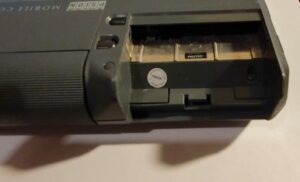
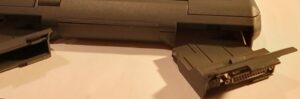
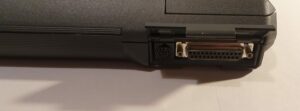
On the back, on either side of the battery pack, are two expansion modules. On mine, the one on the left contains the serial RS-232 and parallel printer ports, and the other is just a blank.
There was supposed to be a voice compression module and a modem module available, but as far as I can tell neither were made.
The module I have seems to have been standard issue. It provides the standard centronics printer port and the RS-232 serial port. The serial port connector was a mini-din, fortunately compatible with the cable for the Series 3 (which I already had).
Summary
- CPU: Intel 80C86 processor running at 7.68 MHz.
- Screen: 640×400 pixels, mono LCD, no backlight.
- Full size qwerty keyboard.
- RAM: 256KB.
- ROM: built in, with applications on a system EPROM SSD.
- 4 SSD memory slots.
- RS-232 serial port (with proprietary commector).
- Centronics printer port.
- 2 removable expansion slots.
- Trackpoint-like pad (position on pad being relative to position on screen).
- Headphone and microphone jacks.
- Fast serial connector.
- Batteries: 8xAA, 1xCR1620 for memory/clock backup.
- External power: 12V (centre negative).
Software
The MC400 contains all it’s built-in software on a System EPROM SSD. The OS itself is on an internal ROM which cannot be upgraded. At least two versions are known to exist – I have 2.31F ENG. There is a MC400 Word model which had a newer OS and much improved Word Processor app which required the newer OS in order to run. I tried to run the app on my version but failed.
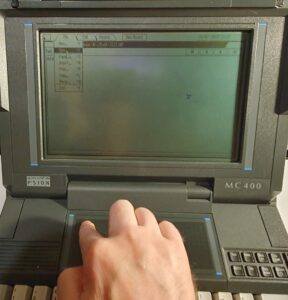
The look and feel of the MC400 isn’t far different than what we’ve come to expect in 2023. It has menus, icons, dialog boxes and scroll bars which all behave as you’d expect. Using the trackpad is something that takes some getting used to, though. If you don’t touch it, you don’t get a pointer on the screen. When you slide your finger on it (which takes more pressure than you’d be used to), the pointer appears. The pointer position on the screen is relative to your finger position on the trackpad – emphasised by the bars printed on either side of the pad and the screen. To click you press the pad until it audibly clicks.
Active windows have a black title bar with white end caps. Inactive windows are all white. Click a window to make it the active one (there can be only one). To move windows, you drag the black portion of the window’s title bar. To resize you click the left white area. You then get arrows all around the corner and edges of the window which let you drag that edge or corner of it. You can move the window in this mode too by dragging the middle of it. Pressing enter completes your action. The right white section of the title bar, when clicked, maximises the window.
To start programs, you use the System application. You can quickly switch to System by pressing psion-Task. The System app has a menu bar and a short wide window of icons (which by default is at the bottom of the screen). In the Apple way, the menu for the currently selected application always appears at the top of the screen. The System window contains all the installed programs. Install… on the File menu lets you add more.
On the System menu you can view System info, Application info and running Tasks.
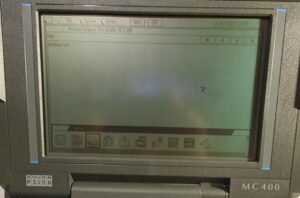
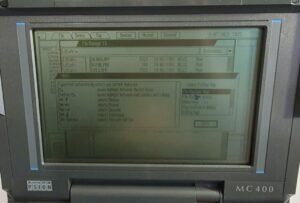
To the right of the menus are buttons, which like the menu are also application specific. Not all applications have buttons, but in System you have two of them: Info and Off. The Off button is pretty obvious (you can use psion-ctrl-1 to achieve the same effect at any time). The Hints button gives a random hint that explains something about the MC400.
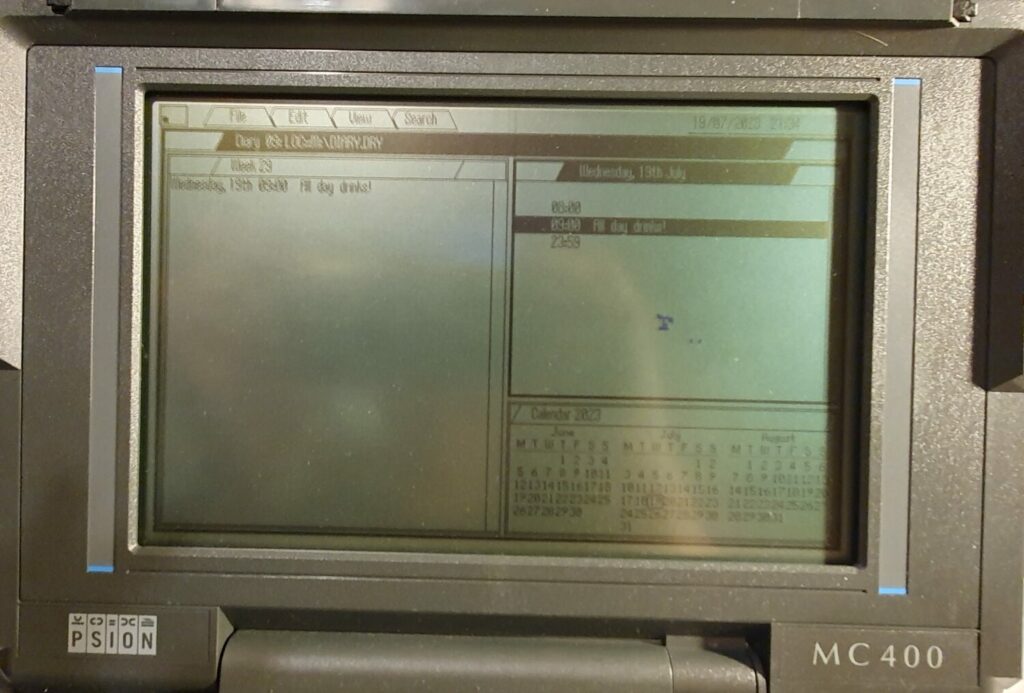
The Diary application is pretty good. When you start it, you get a view of three windows (contained within a bounding window). These are a three-month calendar, a list of times of the chosen day and a quick view of all appointments for the week. Selecting a day in the calendar chooses that day and selecting a time enters an appointment. You can set an alarm on an appointment and you can set its start time and duration. There is no way to set recurring appointments.
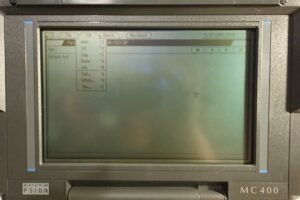
The Personal Database application is pretty basic. You can enter as much text as you like in a record, but there is no concept of fields. You can then search for a record containing specific text or move between records one at a time. You can have multiple database files which contain different types of data, for example an address book and a list of your CD collection.
The MC400, like every the Organisers before it and the Series 3, 5 and 7 after it, runs the OPL language. OPL stands for Organiser Programming Language and it’s a lot like BASIC, but much more sophisticated. The version of OPL on the MC400 bears a lot of resemblance to the version on the Organiser II. This also includes a lack of any commands to help with the additional features of the MC400. OPL on the Series 3 and 5 has commands to assist with writing GUI applications, for example, setting up menus, windows and so on. Unfortunately, the MC400 OPL has none of these features.
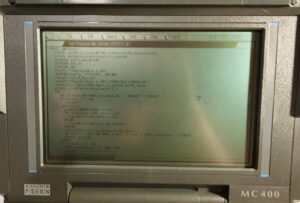
Writing an OPL program is usually done in the Text Processor and the resultant code is then translated into a form which the MC400 can run.
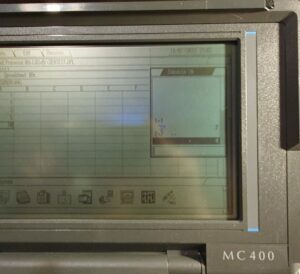
The calculator application on the MC400, dsspite its appearance, is one of the more sophisticated applications for the MC400. You can, of course use it as a basic calculator. You can also use memories, enter hexadecimel numbers (and even get results that way), or use mathematical operators (like SIN, LOG or ABS). If you wan’t to get fancier, you can use variables and even OPL routines.
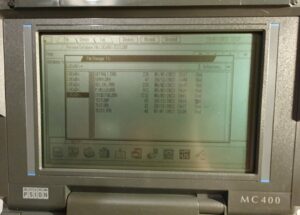
To organise your files you can use the File Manager. This allows the copying of files, deleting them, creating directories and so on. The RAM disk and the cards all behave similarly, and so do external disks. The Link application (in conjunction with mclink on your PC) allows disks on your PC to appear in the File Manager (and in Open dialogs etc.) just like an internal memory card. It’s a convenient (if slow) way to copy files into and out of your MC400. The mclink program is written with the same GUI interface as the MC400 and it’s written to run on DOS (not Windows). I use it under DOSBox on Linux.
Summary
- OS: Psion’s EPOC.
- Text processor.
- Diary.
- Personal database.
- File manager.
- Serial terminal.
- Serial link.
- Alarm clock.
- Calculator.
- OPL programming language built-in.
- C SDK available.
- Spreadsheet (additional).
- Missile command (additional).
Repairs etc.
My MC400 works perfectly, I’ve not had to repair it. I bought it from eBay complete with manuals but no box. It’s in great condition… except for one thing…
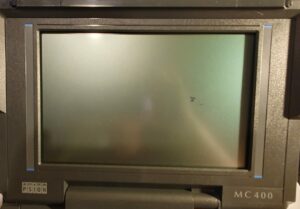
There’s a blemish on the screen. This wasn’t there in the auction pictures so it must have happened during shipping. The seller was kind enough to give me a discount since I didn’t want to return such a rare piece of Vintage Tech. The blemish (as you can see from the pictures) isn’t that bad. I’m not sure what it is, but it’s not broken LCD pixels. It seems to be on a slightly different plane than the displayed pixels and of a slightly different colour too. I’m reluctant to do anything about it in case I make things worse.
The serial port on the MC400 is a proprietary one – a mini-din. Fortunately it’s the same as that on the Series 3 serial cable. I’ve had a Series 3a for some time and I already had one of those. The SSD memory cards are also the same as those used in the Series 3 so I had a few of those too. Lucky!
Oh, yes, I also managed to find the C SDK for DOS!
Summary
The MC400 is one of my favourite pieces of Vintage Tech. It’s robust, has a lovely keyboard and a perculiar trackpad. It’s nowhere near as good as modern trackpads but it was one of the first.
The software on the variant of the MC400 that I have (not the MC400 Word) is the only one I can comment on. The Text Processor is a bit basic but does the job and the OPL is missing some features which would have allowed it to be used in writing application software for the MC400. As it stands you can only output into its own text window. The terminal emulator also lacks in that it doesn’t emulate a known terminal type (like VT100 or VT52). The Diary and the Calculator are good examples though and the (not included) spreadsheet works well.
Psion’s Link software is excellent though. I’ve previously used it on the Series 3 and 5 but even on the MC400 it’s very good.
One thing that’s really disappointing about the MC400 though is the lack of additional software. I’ve found very little so far, including the Spreadsheet and Missile Command. Some of the Series 3 software will run on the MC400 but very little as, obviously, the graphical routines will have been updated for that machine.
To-Do
- Try again to find software for it. There must be more than 4 programs out there!
Nice post. This blog has some interesting mc400 stuff
https://zedstarr.com/2021/09/17/mc400cxf/
Cheers!
I had a quick look. Interesting. I need to spend more time reading that!