
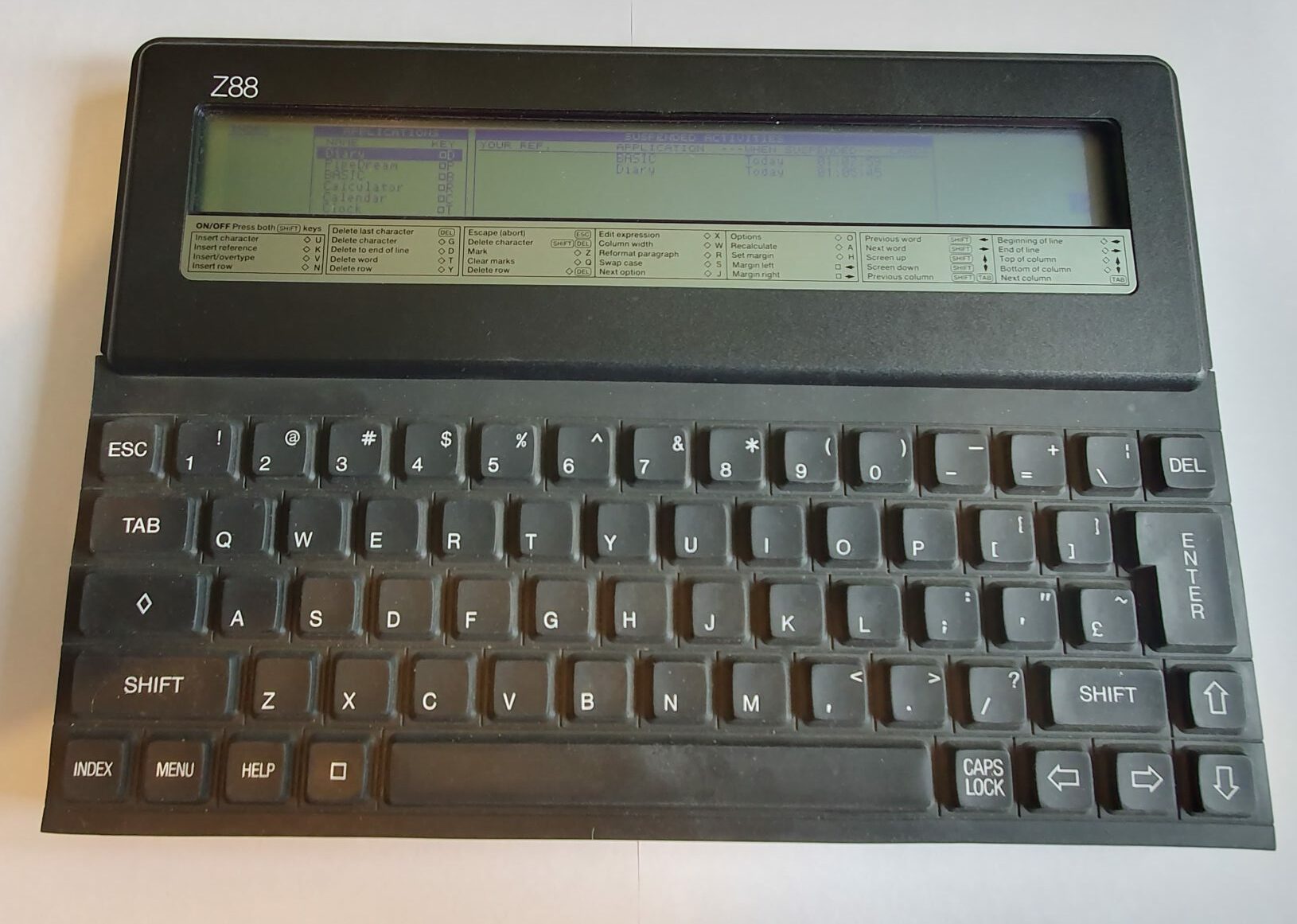
Cambridge Computers Z88
The Z88 was the last computer from Sir Clive Sinclair, famed for his ZX Spectrum computer and the ill-fated C5 electric vehicle. In 1986, Sir Clive Sinclair had been forced to reduce the staffing of Sinclair Research to just himself and a couple of others (then he dropped them too) and then he had no choice but to sell the brand to Amstrad. He kept hold of Cambridge Computer though and in 1987, just one year later, the Z88 was released.
Despite running on a Z80 CPU, the Z88 was not designed to be compatible with the ZX Spectrum or the Sinclair QL (one of Sir Clive’s less popular computers).
The Z88 has a similar size and form factor to the Amstrad NC100, being about A4 sized, having a full-sized keyboard and a short wide LCD display. The Z88 was release five years earlier though. The similarities end at that point: the keyboard is a rubber type reminiscent of the ZX Spectrum (but a huge amount better to type on), the operating system is far more sophisticated and it has three expansion slots (proprietary) and an expansion connector (again proprietary).
Unlike most computers with volatile file store, there is no memory backup battery. If your AA batteries need to be changed the Z88 will not power up, leaving the remaining charge in the batteries to keep the memory contents alive. When the user gets around to taking the batteries out there is a supercapacitor inside to do that job for long enough to put the new ones in.
Hardware
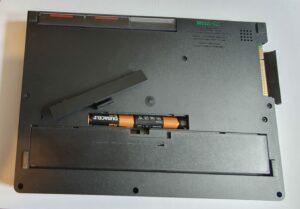
As with most devices of the time, the Z88 was powered with 4 AA batteries. The low power nature of the machine meant it could last for quite a while off that – 20 hours is cited. That would depend on whether you had memory cards installed. The RAM cards had no battery of their own and since they were volatile memory they needed a portion of the batteries to keep them alive.
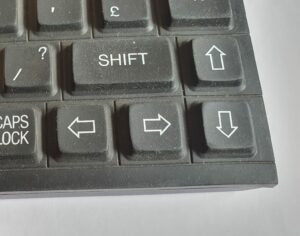
The keyboard of the Z88 was quite unusual for a device of this type, but not so much when you consider it was a Sinclair product. The rubber keys are quite reminiscent of the ZX Spectrum, but they certainly didn’t have the same ‘dead flesh’ feel to them. You could actually type reasonably well on this keyboard and, I expect, the rubber nature meant it was waterproof. The rest of the machine certainly wasn’t though!

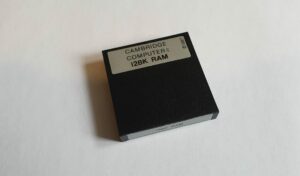
One useful feature of the Z88 was its expandability by the means of up to three memory cards. The cards could be ROM, RAM or EPROM. The two latter being writable. Slot 3 contained the special ability to program files to the EPROM, although not to erase them.
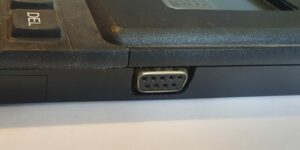
To communicate with the outside world, the Z88 contained an RS-232 compatible serial port. The connector itself may be a standard 9 pin D-type but it is not wired in the same was as a that of a standard RS-232 port. In fact it is even located so close to the case that it’s quite difficult to get a home-made connector with a shell into it – you really need a moulded connector.
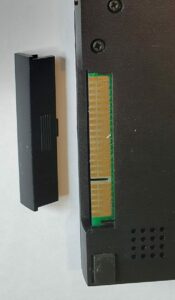
The Z88 also comes with an expansion port on the side under a cover. Reputedly this is for a monitor or disk drive. I can find no mention of such devices. Rakewell sell something called a RangerDisk2 (made by Ranger) which is a floppy drive but it connects to the serial port. I haven’t found anything else.
Summary
- CPU: Z80A running at 3.3MHz.
- Display: 640 x 64 pixels, 4 shades of blue.
- RAM: 32KB.
- ROM: 128KB.
- RS-232 compatible serial port (different pinout to the later RS-232 standard).
- Power: 4xAA batteries or 6.5V barrel jack, centre positive.
- 3 cartridge slots, one with the ability to write to EPROM. Up to 1MB capacity each.
- An expansion port.
Software
The operating system on the Z88 is named OZ. This might be a reference to the Wizard of OZ, although an OS can never be all that magical – just look behind the curtain. That said, it was a pretty nice operating system for a small device.
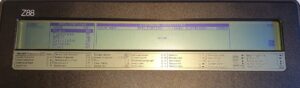
The Z88 had proper applications and a manager for those that were ‘running’ at any one time – it didn’t actually perform any kind of pre-emptive multi-tasking, just suspended the running one and made another one active. The INDEX button on the keyboard would take you to a screen that would allow you to do this.
You could install more applications to the Z88 through the serial port or on a ROM or EPROM card. You could even add RAM memory card(s) to allow more to be open at any one time. Only one expansion slot out of the three had ability to write to EPROMs but any of the three could be used to add RAM disks or additional software on ROM.
Powering on the Z88 was more of a ‘sleep’ function in that the power consumption would be drastically reduced, most of the system being turned off. In that state, alarms would still function and, when switched back on, the machine would be in the same state as it was when switched off. The way to switch off (or indeed on) the Z88 was quite unusual, however – no power button was present. Instead you pressed both shift keys at the same time. I’ve never seen that anywhere else. The only other oddity I’ve seen in this department is the Atari Portfolio. On that you press a key combination for off (Fn-O) and any key on the keyboard to switch it back on.
The Z88 has two different type of programs: Applications and Pop-downs. Applications, as you’d expect, are fully fledged, take over the whole machine kind of programs, like Pipedream and Pop-downs are small pop-up applications that only take up the centre part of the screen and have very limited ability. Examples of pop-downs are Calendar (which lets you see the days you have diary entries against) and Clock (which shows the clock and lets you set the time and date). The Calendar pop-down integrates well with the Diary application to set the date you want to see/edit (more details on that below).
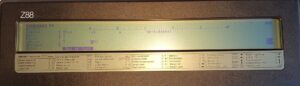
Rather than two separate programs for spreadsheet and word processor, the Z88 uses a program called Pipedream. This is a combination of both. When you start it, you get a screen that look a lot like a spreadsheet and you can use it just like one. The cells are defined as text cells by default though, so you need to change their type to be able to use them as numbers.
Entering numbers into cells in Pipedream is as easy as pressing ◊X (or selecting Edit Expression on the Edit menu). You can enter numbers or expressions in such cells, like ‘SUM(A1 A4)’ – note that there is no need to start with = or place any symbols between the start and end cell addresses. If a cell is defined as text, you can type in it like you would in a word processor. Pipedream is complicated but (apparently) powerful, although I’ve not managed to get my modern word processor and spreadsheet skills to play nicely with it. The User Guide provides examples and comprehensive details (I think you’ll need that!)
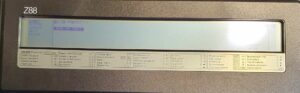
The Diary can be entered from the index or by pressing □D (every program has a similar shortcut). When entered, you are presented with an editor screen and a date is shown to the right of the display. This is a diary entry for that day. If you change the day then you can edit different text for that new day. There is no concept of time on a particular day and thus no alarm.
The Calendar pop-down can be used from within the Diary (by pressing □C) and you can choose a different day from here. You don’t need to change days this way, you could instead perform a search, change day up or down or jump between days that have entries on them.
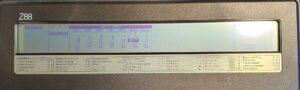
Transferring files to and from a computer could only be done using the serial port. To this end a program called Imp-Export was built-in. It’ not a very sophisticated program but it gets the job done. The protocol is defined in the User Guide- I wrote a simple perl program on Linux to talk with it and that lets me transfer files although I haven’t tried much.
BBC BASIC is included in the Z88 ROM. An odd choice due to the rivalry between Sir Clive Sinclair and Chris Curry. Curry used to work for Sinclair but left to form Acorn – the company behind the BBC Microcomputer – and BBC BASIC. This version has a few missing features, like sound and graphics.
The Filer application lets the user fiddle with the internal filesystem and that on any of the three expansion cards. With this, you can copy, rename or delete files.
PrinterEd allows you to set printer parameters. Not something I have used since I don’t have a serial printer.
Terminal is a VT52 compatible terminal emulator. It’s pretty straightforward. The serial port settings are to be found in the Panel pop-down (the control panel).
Other built-in pop-downs include Calculator, Alarm and Clock (including setting the time and date).
Summary
- OS: OZ.
- Pipedream word processor and spreadsheet.
- Diary and calendar.
- VT52 compatible serial terminal.
- BBC BASIC.
- Import/export program.
- Alarm.
- Misc. apps: Index, Filer, Calculator, Clock, Printer Editor.
Repairs etc.
The device I received was in perfect working order, minus any memory cards, a serial cable or a battery cover. None of these were show stoppers, of course. I put in an eBay saved search and eventually got a battery cover (yes sometimes such things get sold). I got a couple of 128KB RAM cards in the same way. It’s important to note that some people try to sell vintage kit at stupid prices, just be patient and eventually something might appear at a sensible price. There are certain things that really don’t follow this rule, of course, but you’ll learn that over time.
The serial cable turned out to be more of a faff. I found a port pinout diagram in the manual and I had bits lying around, so I thought I’d build one. I couldn’t make it work. After faffing with it for ages, I eventually gave up and bought one on eBay for a reasonable price. After having limited luck with the one I bought, I eventually tried lowering the baud rate and it started working! It turns out that the cable I made was actually fine, too! Low batteries also cause the serial port to be problematic.
With a working serial cable I could communicate with other computers using the Terminal program. Connecting to by Linux desktop I also managed to write a simple perl program to talk with the Imp-Export program. The protocol is documented in the User Guide.
Summary
The Z88 is a sophisticated and expandable device. The OZ operating system lets you run a number of programs at the same time. This isn’t true multi-tasking as only one program can run at any one time, you just suspend one in favour of another.
Pipedream was an interesting choice as an alternative to a separate spreadsheet and word processor and it does the job of either (or both at the same time). You really need to take some time to learn it though.
The VT52 compatible RS-232 terminal is a good addition to the device, but a standard pinout for the connector would have been useful. The standard hadn’t been set yet, so Cambridge Computer couldn’t really be held to blame.
To-Do
- Download and play with some more 3rd party software.